 EzraStream Guide
Everything you need to stream your session to clients: in the room on your Wi-Fi, or anywhere in the world.
- Install
- Your first stream
- Clients anywhere
- Talkback
- A/B with a reference
- Screen sharing and video
- Chat, names and files
- Private sessions and meetings
- Standalone app (no plugin)
- For your clients
- Troubleshooting
- Free and Premium
01Install
- Download EzraStream from ezrastream.com and open the file.
- Run the installer. It installs the EzraStream app (always) and the plugin formats you choose: Audio Unit (Logic Pro, GarageBand), VST3 (Ableton Live, Cubase, Studio One, Reaper and others) and, once released, AAX (Pro Tools).
- Quit and reopen your DAW. If EzraStream doesn't appear, rescan plugins in the DAW's settings. It's listed under DE Audio.
The EzraStream app runs quietly in your menu bar and carries the audio. The plugin starts it for you when needed.
02Your first stream
- Put EzraStream on your master (stereo out) channel as the last insert, so listeners hear exactly what you hear.
- Open the plugin window and sign in with your EzraStream email and password (or Sign in with browser). Your Mac remembers it.
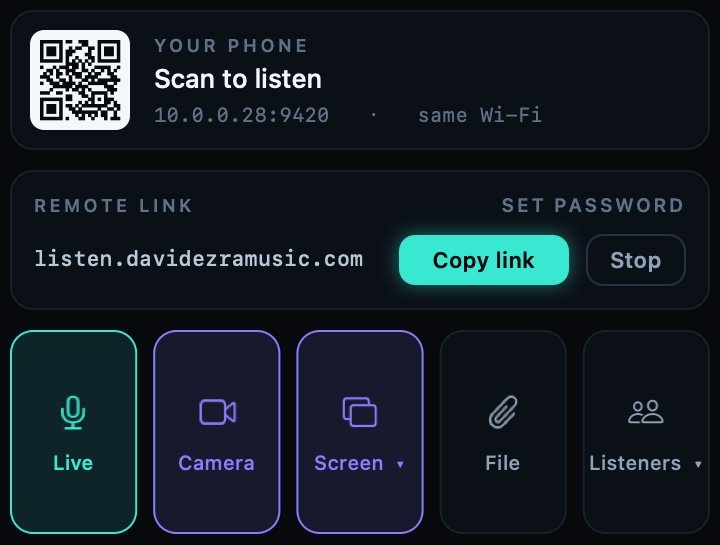
- Under Your phone, scan the QR code with a phone on the same Wi-Fi.
- On the phone, tap the circle to start listening, then press play in your DAW.
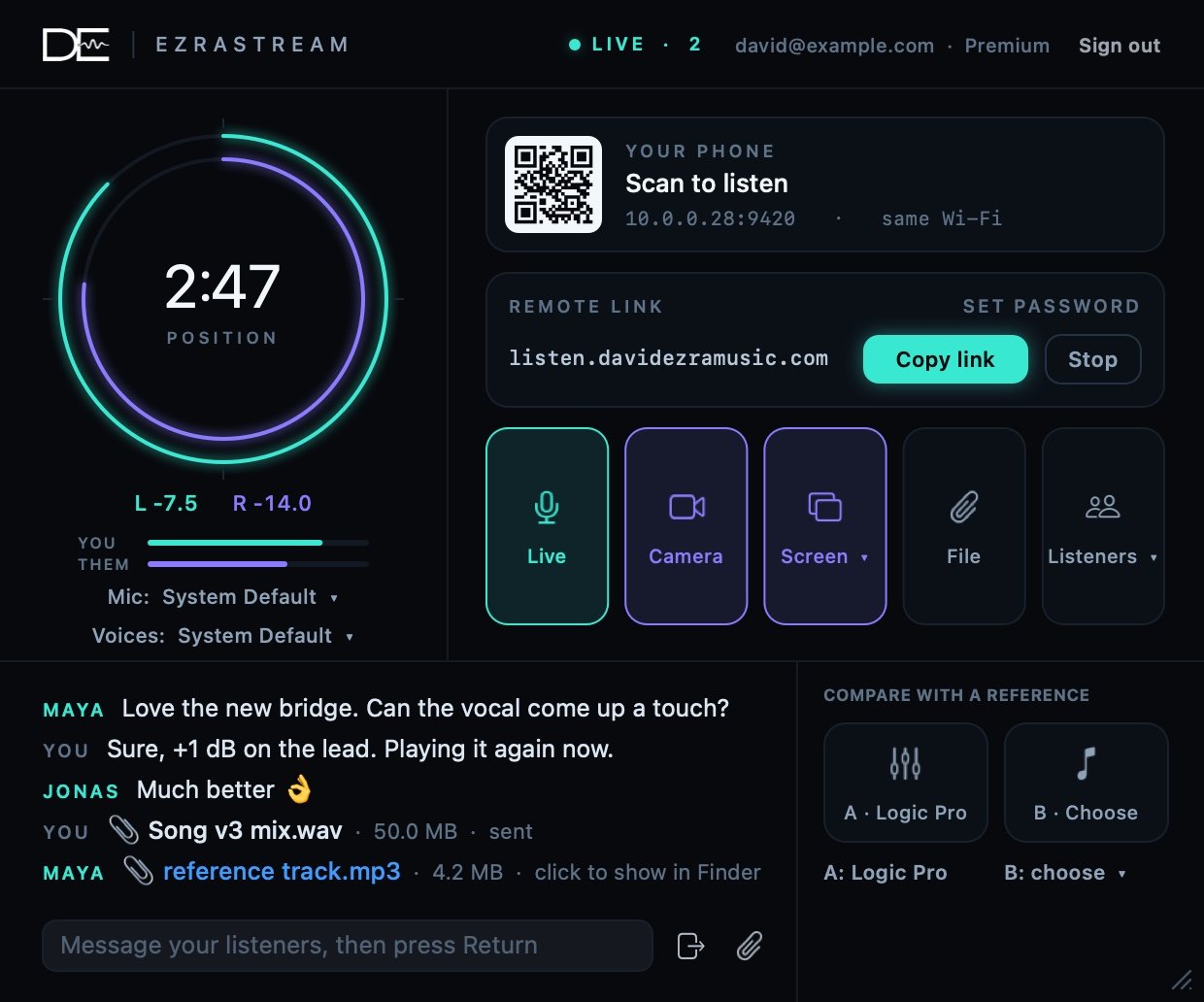
The status at the top shows WAITING FOR A LISTENER until someone connects, then LIVE · 2 with the number of listeners.
03Clients anywhere Premium
- In the plugin window, under Remote link, click Start stream.
- After a moment the link appears. Click Copy link and send it to your client by text, WhatsApp or email.
- Your client opens the link and taps the circle. No app or account is needed on their side.
- Click Stop to end the link. Closing the plugin also ends the session.
Up to 10 listeners can join one session. Your Mac sends the stream once and EzraStream's server passes it on to everyone, so more people don't slow you down.
04Talkback Premium
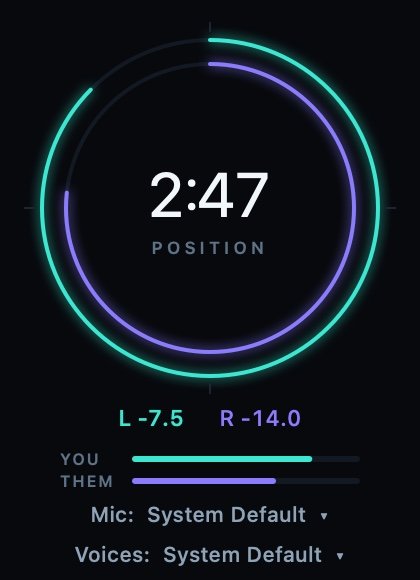
You to them: click Talk in the plugin window. It turns green (Talk · live) and your mic goes to your listeners. Pick the mic under Mic ▾.
Them to you: clients tap Talk on their page. Their voices play on your Mac and the other clients hear them too. Choose where you hear them with Voices ▾.
While the music plays: to keep the mix clean, client mics pause during playback and open again when the music stops.
Automatic: your mic switches on when the first client joins and off when the last one leaves, and a client's Talk is on as soon as they join. You can still switch your mic by hand at any time.
05A/B with a reference Premium
Compare your mix with a reference track, live, while your clients listen.
- Play the reference in Spotify, Apple Music or a browser.
- Click B: choose ▾ at the bottom right of the plugin window (or Audio ▸ Reference (B) in the menu bar) and pick that app.
- Click A or B to switch. A is your mix, B is the reference. Your clients see which one is playing.
Each side plays at its own level, exactly as its source sends it: nothing is level-matched, so the comparison is honest. The switch has a very short fade, so there is no click.
A/B works in your studio too, not only for your clients. On B, the plugin silences your DAW's output and EzraStream plays the reference through your monitors; on A your DAW comes straight back. The switch is instant, like a monitor controller. To keep it playing on your Mac all the time, tick A/B ▸ Reference (B) ▸ Always Play the Reference on This Mac.
Clients can switch A/B from their page too; turn that off with A/B ▸ Listeners Can Switch A/B. A switch changes it for everyone in the session, and each listener hears it after their own small delay.
The other side pauses for you. When you switch, the app on the side you leave pauses (Spotify, Apple Music, QuickTime, TV, Podcasts, VLC), and the one you switch to plays on from exactly where it stopped. Your DAW is never stopped. The first time, macOS asks once to let EzraStream control the app: click OK. Prefer the old way, with both sides playing? Untick A/B ▸ Pause the Other Side When Switching. Videos in a browser (YouTube) aren't paused; only their sound switches.
06Screen sharing and video Premium
Screen sharing
Click the screen button (DAW ▾) and choose Share DAW Window or Share Entire Screen. Choose Stop Sharing Screen to stop. Your clients' pages open the picture by themselves. The first time, macOS asks you to allow screen recording for EzraStream.
Video
- Your camera: click Camera to let your clients see you.
- Your clients' cameras: when a client turns on their camera, a video window opens on your Mac with a tile for each person. Clients can also see each other.
- Mute a client: each tile in the video window has a Mute button. Their page tells them the studio muted their mic. Click again to unmute.
07Chat, names and files Premium
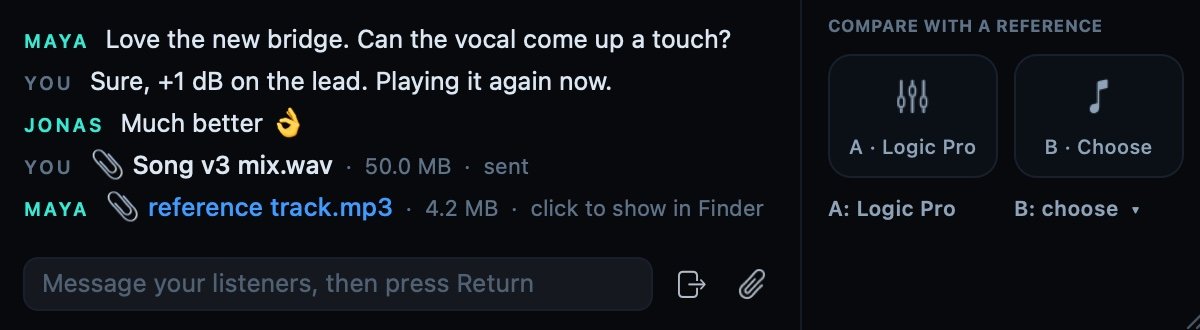
- Chat: type in the plugin window and press Return. Messages from clients appear there too. Open the chat in its own window from the app's menu (Chat…).
- Names: clients tap Your name on their page to add their name. It shows on their camera tile and their messages. It's optional.
- Files: click File to send a file (up to 200 MB) to everyone. Clients can send files back from their page; you'll find them in Downloads › EzraStream.
08Private sessions and meetings Premium
Session password
Click Set password in the plugin window (or Session Password… in the app's menu). Anyone joining must type it first. It's optional; remove it the same way.
Scheduled meetings
Your usual link always works. For a booked session, give the client a link of their own:
- Click the EzraStream icon in the menu bar and choose Meetings › Schedule Meeting…
- Type the client's name, then pick the date, time and length, and click Schedule.
- The invite is copied: paste it to your client. Click Add to My Calendar if you like.
- The link opens 15 minutes before the start. Earlier, your client sees when it starts.
- During the meeting only that link can join. Your usual link is blocked until the meeting ends (or until your client leaves, if you run over).
- Old meeting links stop working. Find, copy or cancel meetings under Meetings.
Session history and timer
Session History… in the app's menu shows when the session started, how long it ran, and who joined and for how long. Click Copy to paste it into an invoice. The running time shows next to it, and your clients see it on their page.
09Standalone app (no plugin)
Stream from any app on your Mac, Pro Tools included, without the plugin:
- Open EzraStream from your Applications folder and sign in.
- Click Stream from in the app window (or Stream From in the menu bar) and choose:
- An app's sound: Pro Tools, a browser, a music player… Your clients hear exactly what it plays, with nothing to route. Apps playing right now are marked. The first time, macOS asks you to allow EzraStream to record audio from other apps.
- An audio device: an interface's inputs (pick the pair, e.g. Inputs 3–4), or a virtual device's outputs (e.g. send Pro Tools to Pro Tools Audio Bridge outputs 1–2 and pick Outputs 1–2).
- Streaming an app: untick Also Play It on This Mac if only your clients should hear it, so your headphones carry just the conversation.
- Use Share Online… for a link to clients anywhere, and Copy Client Link to copy it.
Your talkback Mic can be any input of your interface (e.g. Symphony › Input 5), and Voices sets where your clients' voices play. Please only stream what you have the right to share.
The same menu has Talkback, Let Listeners See (screen and camera), Chat… and Video Window…. You can resize the app window by dragging any edge.
10For your clients
Send them this with the link:
- Open the link in Safari or Chrome and put headphones on.
- Tap the circle to start listening.
- Talk is on when you join, so you can speak to the studio. While the music plays the mic pauses.
- The page speaks your language: English, Deutsch, Français, Español or हिन्दी (choose at the bottom of the page).
- Screen shows what the studio shares. Camera lets the studio see you. Chat to write. Your name so everyone knows who you are.
- Tap a reaction (👍 🔥 ❤️ 👏 🔁) to react without talking over the music. 🔁 asks the studio to play it again.
| Setting | What to choose |
|---|---|
| Latency | Auto (recommended) adjusts by itself. If the sound drops out, choose High. |
| Quality | 24-bit for the best sound. On a weak connection or mobile data, 16-bit or AAC. |
11Troubleshooting
- The plugin says "Open the EzraStream app first" or APP NOT RUNNING.
- Open EzraStream from your Applications folder once. After that the plugin starts it by itself.
- The phone can't connect with the QR code.
- The phone must be on the same Wi-Fi as your Mac (not mobile data, not a guest network). If it still fails, use Start stream and the online link instead.
- The client hears nothing.
- Check they tapped the circle, their phone isn't on silent, and the DAW is playing with EzraStream on the master channel.
- The sound drops out or the video stutters for someone far away.
- Ask them to set Latency to High and Quality to 16-bit or AAC, and to use Wi-Fi rather than mobile data.
- Everyone hears an echo or a "double voice".
- Someone is using speakers. Ask them to wear headphones, or mute them from their video tile.
- A client sees "This session is full".
- A session has room for 10 listeners. They'll join by themselves as soon as someone leaves.
- Screen sharing shows nothing.
- Allow EzraStream in System Settings › Privacy & Security › Screen & System Audio Recording, then try again.
12Free and Premium
| Free | Premium | |
|---|---|---|
| Stream to a phone on your Wi-Fi | ✓ 16-bit | ✓ 16/24/32-bit, AAC |
| Online link for clients anywhere | – | ✓ up to 10 listeners |
| Talkback and chat | – | ✓ |
| Screen sharing and video | – | ✓ |
| Sending files | – | ✓ |
| A/B with a reference | – | ✓ |
Manage your plan at listen.ezrastream.com/account, or from the app's menu (Manage Account…).